App y conectividad:
Enjox Remote
Juguetes:
Kite Yami BoomPro

Para Android:

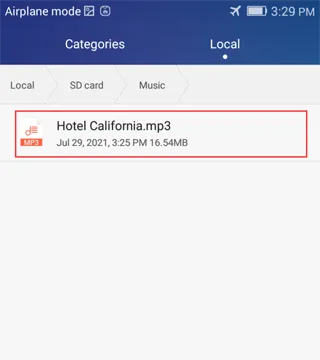
Guarda la música que descargaste en la carpeta "Music" de la memoria interna de tu teléfono.
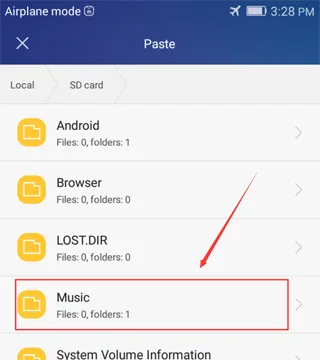
![Syncing music to an Enjox toy on Android (step 1)](/article/images/d37d58216d7d242ee12d2b373bfe5855.webp) ![Syncing music to an Enjox toy on Android (step 2)](/article/images/3ed45b66d0937d9246761bb98e724718.webp)

La música de esta carpeta aparece en la app:
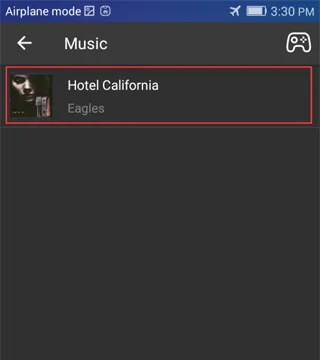
![Synced music folder shown in the Enjox Remote app on Android (step 3)](/article/images/73f55595ab971fe76a323660eedb864e.webp)

Para iPhone:

  1. Inicia sesión en iTunes y conecta tu teléfono.
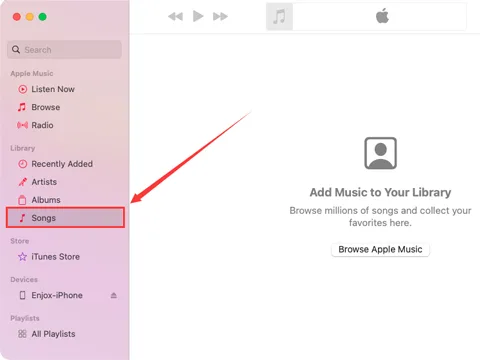
![Connecting an iPhone to iTunes to sync music (step 1)](/article/images/daa25b3168ed432c7a68fd39edb94b8a.webp)
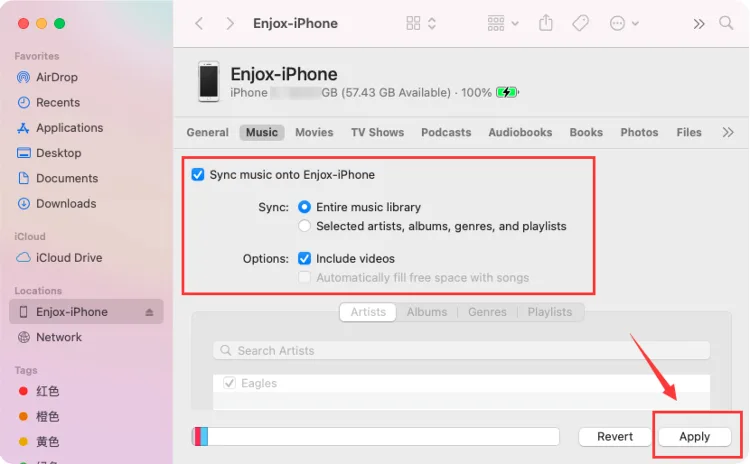
  1. Arrastra toda tu música a la carpeta "Songs".
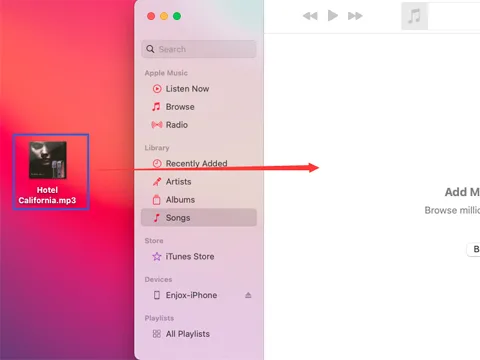
![Dragging music into the iTunes Songs folder (step 2)](/article/images/8103aea72e174712b70b43ffc4218a25.webp)
  1. Ve a la sección "Music" y toca "Sync Music". Esto sincronizará tu música con la app "Music" de tu teléfono.
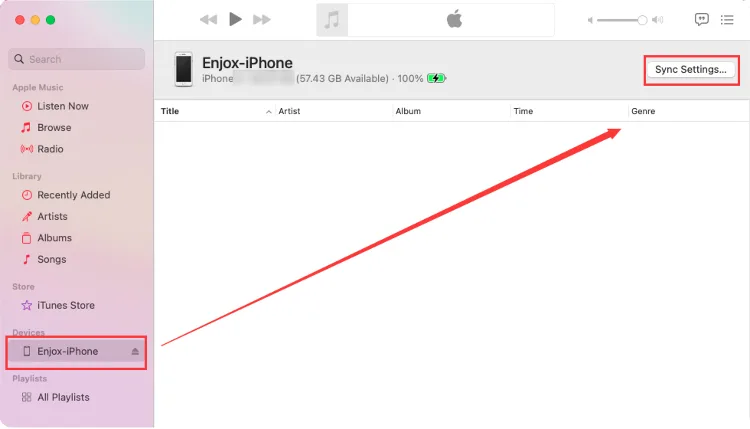
![Syncing music to an iPhone for Enjox (step 3)](/article/images/e2e67eb85e96d3f170a03df226ec5abe.webp) ![Syncing music to an iPhone for Enjox (step 4)](/article/images/dd74b96f8dd79afcd9300fa0c63054e5.webp)
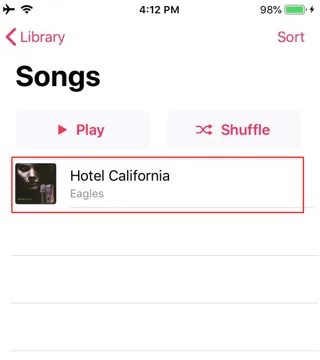
  1. Abre la app Music en tu teléfono. Verás la música que se sincronizó desde tu cuenta de iTunes. Si hay un icono de descarga, tócalo (para las canciones que quieras que aparezcan en nuestra app).
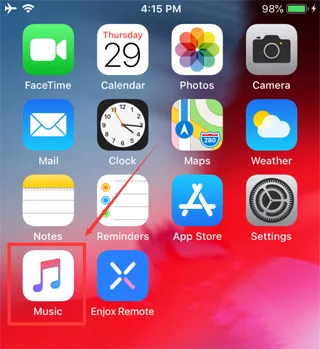
![Syncing music to an iPhone for Enjox (step 5)](/article/images/49839e37f86f10f42e40f0cb03e29330.webp) ![Syncing music to an iPhone for Enjox (step 6)](/article/images/3185419e8b532ce602f1f2d25bbe0e9a.webp)
  1. Abre la app Enjox Remote. Verás la música que has descargado.
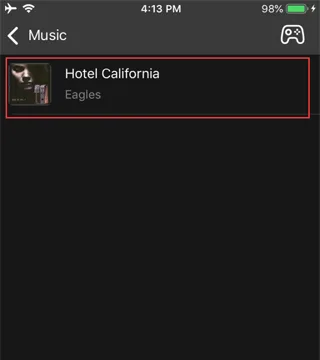
![Downloaded music shown in the Enjox Remote app on iPhone (step 7)](/article/images/215158fe048147ddd2c3460cba150439.webp)

Our site uses cookies. By continuing to use our site, you agree to the use of cookies. For more information about the use of cookies on our website, please see our Cookie Policy.